

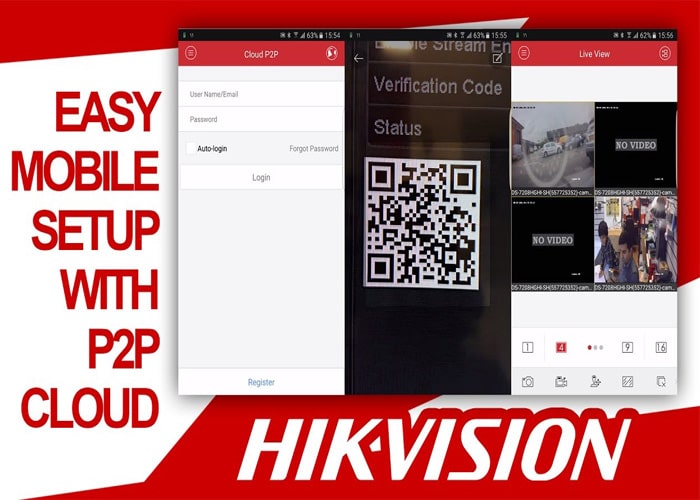
PeDNS Software is a DNS configuration utility that can help troubleshoot certain Hikvision P2P and Hik-Connect connectivity scenarios. This page explains the download and setup steps for Android and iOS and lists the DNS settings referenced in the guide.
For additional surveillance utilities, visit our CCTV software downloads page or see the Remote Backup Software guide.
Recently, some DNS service providers have imposed restrictions on users due to sanctions. In this article, we present an alternative solution to help Hikvision camera users overcome this problem. It should be noted that this issue is not caused by Hikvision and relates only to DNS service providers. To resolve P2P connection issues using PeDNS, you can easily change your mobile phone’s DNS and use the Hik-Connect service. (For the Hik-Connect application and usage instructions, see the article on downloading Hik-Connect.)
1. First download and install the software.
2. Select your DNS server as shown in the image. (Note that all servers available in this software are connected to the Hik-Connect server.)

3. Then select the Change option. The software will run and you can use the Hik-Connect application.
4. To stop the program, select Stop.

For users with iOS phones, follow the steps shown in the image below:

| 199.85.127.10 | 195.46.39.40 | 8.20.247.20 | 94.232.174.194 | 199.85.126.20 |
| 84.200.69.80 | 208.76.51.51 | 209.244.0.3 | 8.26.56.26 | 199.85.127.20 |
| 84.200.70.40 | 208.76.50.50 | 209.244.0.4 | 199.85.126.10 | 178.22.122.100 |


